Home Assistant Matter support is no longer something I would file under “promising, if you enjoy debugging.” The June 2026 Matter Server 9.0 release moved Home Assistant’s Matter backend from the older Python/C++ stack to matter.js, with faster startup, more reliable reconnection, and a new visualization tool for Thread and Wi-Fi networks. It also raises the practical bar: Home Assistant now recommends roughly 4 GB of RAM for the new Matter server expectations.[1]
That changes the starting point for a 2026 setup guide. The question is not whether Home Assistant can handle Matter. It can. The question is whether the house you are standing in is ready for Matter commissioning: IPv6 on, Bluetooth available through the phone, the Companion App installed, mDNS able to reach the right places, and the device on the correct path for either Matter-over-Wi-Fi or Matter-over-Thread.
Check the Real Prerequisites First
Before opening a QR code, check the boring pieces. Most failed Matter setups do not fail at the smart plug or bulb. They fail one layer earlier, usually at phone commissioning, IPv6, Thread discovery, or mDNS.
| Requirement | Why it matters |
|---|---|
| Home Assistant with Matter Server 9.0 | This is the current 2026 baseline, with the matter.js backend, faster startup, improved reconnection, and network visualization. |
| Enough memory, preferably 4 GB RAM or more | The 9.0 upgrade roughly doubles Matter server RAM expectations. |
| Android or iOS phone with Bluetooth | Matter commissioning starts from the phone; Home Assistant does not simply discover every new device by itself. |
| Latest Home Assistant Companion App | The app hands the commissioning flow to the phone OS and returns the device to Home Assistant. |
| IPv6 enabled | Matter relies on IPv6. If IPv6 is disabled or manually misconfigured, discovery and commissioning can break. |
| mDNS working where the device, phone, and Home Assistant need it | Matter discovery depends on local service discovery. VLANs and segmented networks can stop that traffic. |
| Thread border router for Matter-over-Thread only | Thread devices need a border router. Matter-over-Wi-Fi devices do not. |
The official Home Assistant Matter documentation sets the mobile baseline clearly: commissioning needs Bluetooth on an Android device running Android 8.1 or newer, with Android 12 or newer recommended, or an iOS device running iOS 16 or newer. Android also needs Location permission set to “Allow all the time” for the Home Assistant Companion App.[2]
That last Android permission sounds unrelated until you are the person in the hallway watching setup hang. Bluetooth-based commissioning on Android is tied into OS permission behavior, so a device can be physically nearby, powered on, and perfectly functional while the setup flow still cannot complete.
Choose the Wi-Fi or Thread Path Before You Buy Anything Else
Matter is the application layer. It can run over Wi-Fi, Ethernet, or Thread. For a normal Home Assistant user, the important split is simpler: Matter-over-Wi-Fi devices join your Wi-Fi network, while Matter-over-Thread devices join a Thread mesh and need a Thread border router to reach Home Assistant.
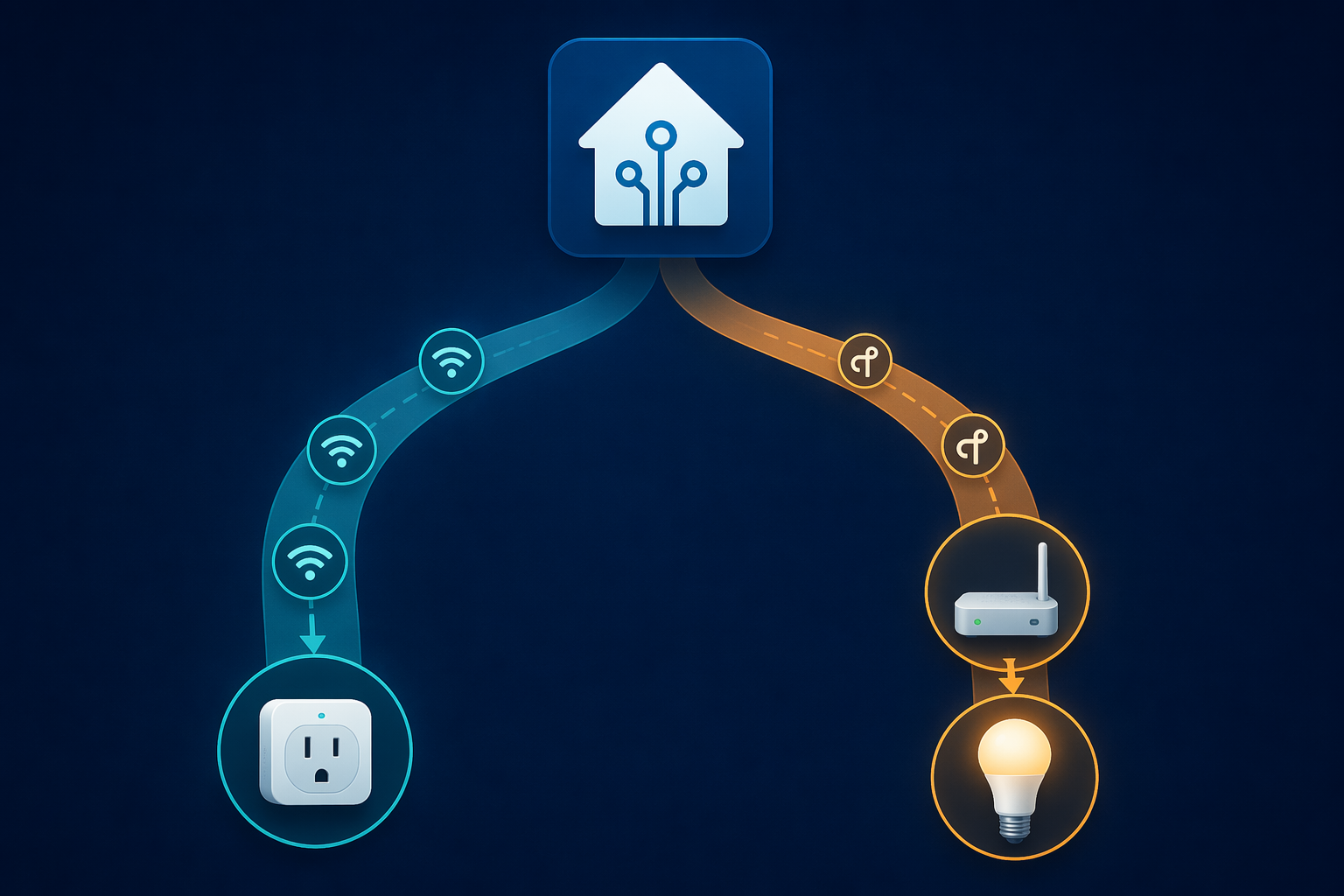
- If the box says Matter-over-Wi-Fi, you do not need a Thread border router for that device.
- If the box says Matter-over-Thread, you need a working Thread border router on the same usable home network path.
- If the product is a Matter bridge, such as a hub exposing older devices through Matter, you are commissioning the bridge, not each bridged accessory as a native Matter device.
- If you already have Zigbee or Z-Wave devices working well through native Home Assistant integrations, Matter is not automatically an upgrade for those devices.
Home Assistant’s documented Thread border router options include devices such as HomePod Mini, Apple TV 4K, Nest Hub 2nd Gen, and Home Assistant’s own OpenThread Border Router app with compatible adapters including Connect ZBT-1, ZBT-2, and SkyConnect.[2] For a deeper hardware decision, use a dedicated Home Assistant Matter dongle guide rather than turning commissioning into a shopping exercise.
One Apple-specific detail is worth stating plainly. Apple Thread border routers can provide Thread connectivity, but Home Assistant Matter OTA firmware updates do not work through Apple Thread border routers because Apple devices block the necessary mDNS packets.[3] That does not make a HomePod Mini or Apple TV 4K useless for Thread. It means you should not expect the same update behavior you would get from a Home Assistant-managed OpenThread Border Router.
Prepare Home Assistant
Start inside Home Assistant, not with the device packaging. Update Home Assistant, then confirm that the Matter integration is installed and that the Matter Server is running the current 9.0 generation. If your installation is on constrained hardware, check memory before blaming a device. Server 9.0’s improved behavior comes with higher RAM expectations.[1]
- Update Home Assistant Core and the Home Assistant Companion App.
- Install or confirm the Matter integration.
- Confirm Matter Server 9.0 is installed and running.
- If you use Thread, confirm the Thread integration and your Thread border router are visible.
- Open the new Thread/Wi-Fi visualization tool if available and check that the expected network path exists before commissioning.
The visualization tool is not decoration. It gives you a faster way to see whether Home Assistant understands the network shape you think you built. If a Thread device is about to be commissioned, but the border router or Thread network is missing from the view, fix that first.
Prepare the Network
Matter needs IPv6. That does not mean your internet service provider must hand out a perfect IPv6 deployment to every corner of the house, but your local network path must not disable or break IPv6 where Matter devices, phones, border routers, and Home Assistant need to communicate.
A useful real-world failure came from a Home Assistant OS setup where static IPv6 addressing prevented Thread network discovery. Switching IPv6 addressing back to “Automatic” resolved the issue for an IKEA Dirigera-related Matter setup.[4] Treat that as a pattern, not as a universal IKEA rule: if Thread discovery is missing and IPv6 has been manually configured, automatic IPv6 is one of the first things to test.
mDNS is the other trap. A flat home network usually hides this problem because everything can hear everything else. VLANs, guest networks, IoT SSIDs, firewall rules, and multicast filtering expose it quickly. If your phone is on the main Wi-Fi, Home Assistant is on a server VLAN, and Matter devices are on an IoT VLAN, commissioning depends on whether the necessary discovery traffic is allowed between those zones.
- For a simple network, keep the phone, Home Assistant, and the new Wi-Fi Matter device on the same LAN during commissioning.
- For VLANs, confirm that mDNS reflection or an equivalent discovery path is configured intentionally, not accidentally.
- For Thread, confirm that the border router can reach Home Assistant and that Home Assistant can discover the Thread network.
- For Apple Thread border routers, separate connectivity expectations from Home Assistant OTA update expectations.
Commission a Matter-over-Wi-Fi Device
Matter-over-Wi-Fi is the cleaner first test if you are new to Home Assistant Matter support. There is no Thread mesh to diagnose and no border router to select. You still need the phone, Bluetooth commissioning, IPv6, and mDNS.
- Power on the Matter device and put it in pairing mode.
- Keep the phone close to the device for Bluetooth commissioning.
- Open the Home Assistant Companion App.
- Go to the Matter integration flow and choose to add a Matter device.
- Scan the Matter QR code or enter the setup code.
- Let the phone pass Wi-Fi credentials and complete commissioning.
- Return to Home Assistant and confirm the device, entities, and controls appear.
Do the first device near your access point if possible. That is not because Matter-over-Wi-Fi has a special range requirement; it removes one ordinary Wi-Fi variable while you prove the commissioning path. Once one device joins cleanly, later failures are easier to isolate.
Commission a Matter-over-Thread Device
Thread adds one extra responsibility: the device needs to join a Thread mesh, and that mesh needs a border router that bridges it to your IP network. Home Assistant can work with consumer border routers and with its own OpenThread Border Router app, but the commissioning flow only feels simple after that path is already healthy.
- Confirm the Thread border router is powered, online, and visible to Home Assistant.
- Confirm IPv6 is enabled and not pinned to a static configuration that blocks Thread discovery.
- Open Home Assistant’s Thread or Matter network view and check that the expected Thread network appears.
- Power on the Thread Matter device and put it in pairing mode.
- Use the Home Assistant Companion App to scan the QR code or enter the setup code.
- Wait for the phone to complete Bluetooth commissioning and hand the device to the Thread network.
- Verify the device in Home Assistant and test a simple state change, such as turning a bulb or plug on and off.
If you are building Thread around Home Assistant hardware, a dedicated Thread border router setup guide is the better place for adapter flashing, radio mode, and OpenThread Border Router details. During Matter commissioning, the main thing is simpler: Home Assistant must already see a usable Thread path.
Android Setup Notes
Android commissioning deserves its own pause because it can fail before Home Assistant gets a meaningful chance to help. The phone is doing Bluetooth discovery, invoking the platform’s Matter commissioning flow, passing network credentials, and returning the commissioned device to Home Assistant.
- Use Android 12 or newer when possible, even though Android 8.1 is the documented minimum.
- Install the latest Home Assistant Companion App.
- Set Location permission for the Companion App to “Allow all the time.”
- Turn Bluetooth on before starting.
- Keep the phone on the Wi-Fi network that should be used for commissioning.
If Android reports “Matter unavailable,” do not start by factory-resetting every device in sight. Check the OS version, app version, Google Play services state, Bluetooth, and the Companion App permission state first. If it hangs at “Checking connectivity,” look next at Wi-Fi reachability, IPv6, mDNS, and whether the phone is trying to bridge a segmented network it cannot actually see.
iOS Setup Notes
On iOS, the documented baseline is iOS 16 or newer with the Home Assistant Companion App.[2] Bluetooth still matters, and proximity still matters. The smoothest path is to start with the phone on the same normal home network path that Home Assistant and the Matter device will use.
If the home already has Apple Home infrastructure, be careful about assuming that “it works in Apple Home” means Home Assistant will have every capability through the same path. A HomePod Mini or Apple TV 4K can be the Thread border router, but the Home Assistant OTA limitation through Apple border routers remains separate from basic device control.[3]
Verify the Device Inside Home Assistant
A successful QR scan is not the end of setup. Open the device page in Home Assistant and check three things: whether the device is present, whether the expected entities were created, and whether a real command works. For a plug, toggle it. For a bulb, change brightness. For a sensor, confirm that state updates arrive after the device reports.
This is also where Matter bridges need realistic expectations. A bridge can expose non-Matter devices from platforms such as SwitchBot, Aqara, IKEA, or Philips Hue into Home Assistant through Matter, but bridged feature coverage depends on the bridge and the device type. Matter support does not guarantee that every vendor-specific setting appears as a Home Assistant entity.
Matter’s multi-admin design can also let one device participate in several ecosystems at the same time. Matter supports up to 5 fabrics per device, which is why a single accessory can be shared across platforms such as Home Assistant, Apple Home, Google Home, and SmartThings when the device and platforms cooperate.[5] That is useful, but for first commissioning, keep the sequence simple: add it to Home Assistant, confirm it works, then share outward if needed.
Troubleshooting by Symptom
Matter failures are easier to handle when the symptom is translated into the layer most likely responsible. Repeating the QR scan five times rarely changes the underlying condition.
| Symptom | Most likely place to look |
|---|---|
| “Matter unavailable” on Android | Android version, Google services state, Bluetooth, Companion App version, and Location permission. |
| Stuck at “Checking connectivity” | Phone network path, Wi-Fi reachability, IPv6, mDNS, VLAN boundaries, or Thread border router reachability. |
| Thread network does not appear | Thread border router status, IPv6 configuration, and whether IPv6 has been manually set instead of automatic. |
| Device commissions but later becomes unavailable | Matter Server status, network stability, mDNS reachability, Wi-Fi quality, or Thread mesh health. |
| Matter-over-Thread device cannot be added | Missing or unreachable Thread border router, not a Home Assistant Matter problem by itself. |
| OTA firmware update does not work through Apple Thread border router | Expected limitation caused by Apple blocking the mDNS packets Home Assistant needs for Matter OTA. |
| Device appears but expected features are missing | Matter feature exposure or bridge limitation, not necessarily a failed commission. |
If the Device Is Matter-over-Wi-Fi
Keep diagnosis on the Wi-Fi side. Confirm the phone is not on a guest SSID, the device is not being pushed to an isolated IoT network during setup, IPv6 is enabled, and multicast discovery is not filtered. A Wi-Fi Matter device does not become easier to commission because you add a Thread border router.
If the Device Is Matter-over-Thread
Check the Thread path before the accessory. Is the border router online? Does Home Assistant see the Thread network? Is IPv6 automatic and healthy? Is the border router on a network segment Home Assistant can discover? If you have several Thread border routers and the mesh is unstable, move that problem into a focused Thread mesh troubleshooting workflow instead of treating every failed accessory as a new mystery.
If You Use VLANs
Temporarily simplifying the network is a valid test, not an admission of defeat. Put the phone, Home Assistant, and the new device on the same LAN and try commissioning again. If it works there but not on the segmented layout, the problem is almost certainly discovery, routing, firewall policy, or multicast handling between segments.
When Matter Is the Right Home Assistant Path
Matter is a good fit when you want local control, cross-platform sharing, and a device class that Home Assistant’s Matter integration exposes well. It is also useful when a bridge is the cleanest way to bring a vendor’s devices into Home Assistant without relying on a cloud integration.
It is not automatically better than a mature native integration. If a Zigbee, Z-Wave, ESPHome, or vendor-local integration already exposes more entities, better diagnostics, or more reliable firmware management, there is no rule that says Matter must replace it. The practical win is not protocol purity. The win is a device that commissions cleanly, stays local, reconnects reliably, and exposes the controls you actually use.
With Matter Server 9.0, Home Assistant has reached the point where that outcome is realistic for normal users. If IPv6, Bluetooth commissioning, the Wi-Fi-or-Thread choice, and mDNS are correct, setup is usually straightforward. If setup fails, the failure is often evidence that one prerequisite is still unmet, not that Home Assistant Matter support is broken.
References
- The Matter upgrade you’ve been waiting for, Home Assistant Blog, June 23, 2026.
- Matter, Home Assistant.
- Home Assistant’s New Matter Server Is a Game-Changer, matter-smarthome.de.
- Home Assistant Was Unable to Add IKEA Matter Devices, Majornetwork, January 2026.
- Benefits of Matter #5: Multi-Admin, matter-smarthome.de.