Devices
How to Watch The Mandalorian on Your Smart TV
Follow this TV brand-by-brand guide to install Disney+ and start streaming The Mandalorian on your smart TV — no extra hardware needed for most 2016 or newer models.
- Apple HomeNot stated
- Google HomeNot stated
- AlexaNot stated
- SmartThingsNot stated
- Home AssistantNot stated
Before You Open the App Store
If you are figuring out how to watch The Mandalorian on a smart TV, start with the TV brand and model year, not with a streaming detour. Most major smart TVs from 2016 or later can install Disney+ natively, which usually means no extra box, dongle, or console is needed. The annoying part is that Samsung, LG, Vizio, Sony, and Roku all hide the app in different places, and the support cutoff is not identical across them. [1][2][3][5][6]
Samsung: Use Smart Hub
On Samsung TVs, the path runs through Smart Hub. If the set is running Tizen OS from 2016 onward, open Smart Hub, search for Disney+, install it, and sign in. Samsung's support page also makes the cutoff clear on the other side: Orsay-based models are not compatible, so if your TV is older, do not waste time hunting through menus that will never show the app. [1]
LG: Open LG Content Store
On LG sets, open the LG Content Store, search Disney+, and add the app. LG supports Disney+ on webOS 3.0 and later, and its support page includes a model-number table, which is the safest way to confirm a set that looks close to the cutoff but is not obvious from the year alone. [2]
Vizio: Start in SmartCast
On Vizio SmartCast TVs from 2016 onward, launch Disney+ from SmartCast if the native app is available. If you would rather cast than type with the remote, Vizio also supports AirPlay 2 from iPhone or iPad and Google Cast from Android or Chrome, which gives you a workable path even when the app list is being stubborn. [3][4]
Sony: Install Through Google Play
On Sony Bravia TVs running Android TV, open the Google Play Store, install Disney+, and launch it from the apps row. Sony's support page covers Android TV models from 2015 onward, so this is one of the few cases where the supported line starts earlier than the 2016 rule of thumb. [5]
Roku TVs: Use the Roku Channel Store
On Roku TVs and Roku-powered Hisense or TCL sets, open the Roku Channel Store, add Disney+, and pin the shortcut if you want a cleaner home screen. If the TV has Roku built in, that is the whole story; there is no separate OS layer to decode before you can start the app. [6]
Activate Disney+
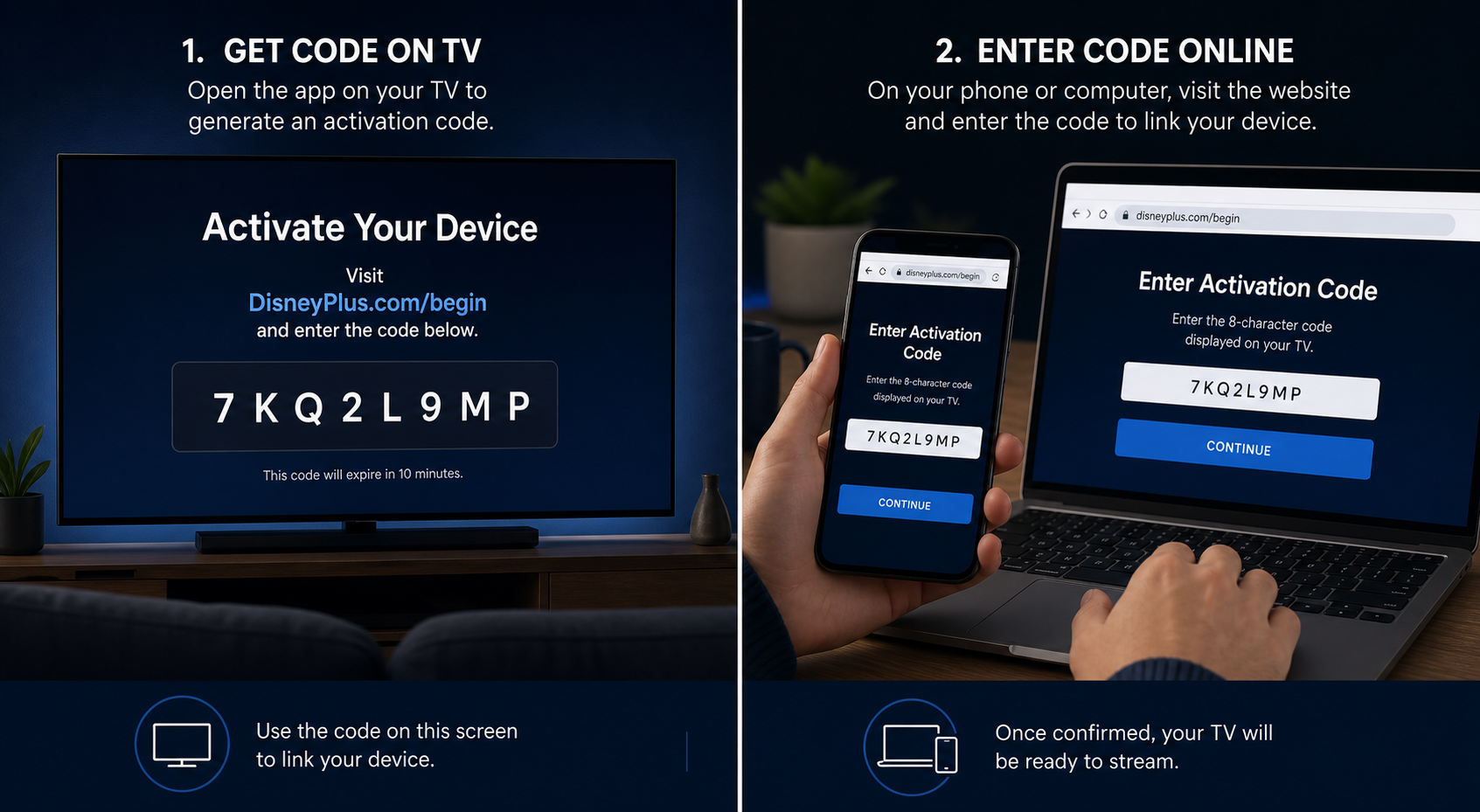
Once Disney+ is installed, open the app and follow the on-screen activation prompt. The TV will show a code and either a QR code or a web address; finish the sign-in on the browser shown on screen, usually at DisneyPlus.com/begin, then return to the TV.
If Your TV Is Not Supported
If the app store never offers Disney+, the cleanest fallback is a supported external device. Disney+ works on Amazon Fire TV, Roku devices, Apple TV 4th gen and later, Chromecast with Google TV, PlayStation 4 and 5, and Xbox One or Series X|S, which is usually faster than trying to force an old TV to behave like a newer one. [7]
References
- Samsung support: How to get Disney+ on my Samsung Smart TV — Samsung
- LG USA Support: Watch Disney+ on LG TV — LG USA Support
- Digital Trends: How to watch Disney+ on a Vizio smart TV using AirPlay 2 — Digital Trends
- MakeUseOf: How to Get Disney+ on Your VIZIO Smart TV — MakeUseOf
- Sony USA: How do I get Disney+ on my TV? — Sony USA
- Tom's Guide: Disney Plus devices and Smart TVs: Here's what you can use — Tom's Guide
- Digital Trends: What devices are compatible with Disney+? — Digital Trends
Report an issue with this profile
If a compatibility claim looks stale or incorrect, tell us — we re-verify before changing what's published.