
Devices
Which USB4 Docks Actually Drive Dual Displays?
Not all USB4 docks support dual external monitors reliably. This article identifies the docks that are confirmed to drive dual displays, explains the crucial host laptop requirements, and helps you avoid a wasted purchase.
- Apple HomeNot stated
- Google HomeNot stated
- AlexaNot stated
- SmartThingsNot stated
- Home AssistantNot stated
If you have a USB4 laptop, two monitors, and a home office dock to buy, start with the annoying part: USB4 does not automatically mean two external monitors. USB4 can carry display traffic, and good USB4 docks can drive dual 4K displays, but the USB4 specification itself requires only single-display support. Thunderbolt 4 is the stricter standard here because it mandates support for dual 4K displays; USB4 leaves more of that decision to the device maker and the host laptop implementation.[1]
That is why a dock box saying “USB4” or “40Gbps” is not enough. A working two-monitor setup depends on three separate things lining up: the dock must explicitly implement dual-display output, the laptop’s USB4 or Thunderbolt port must carry the required video mode, and the operating system or chip family must not impose its own display limit.
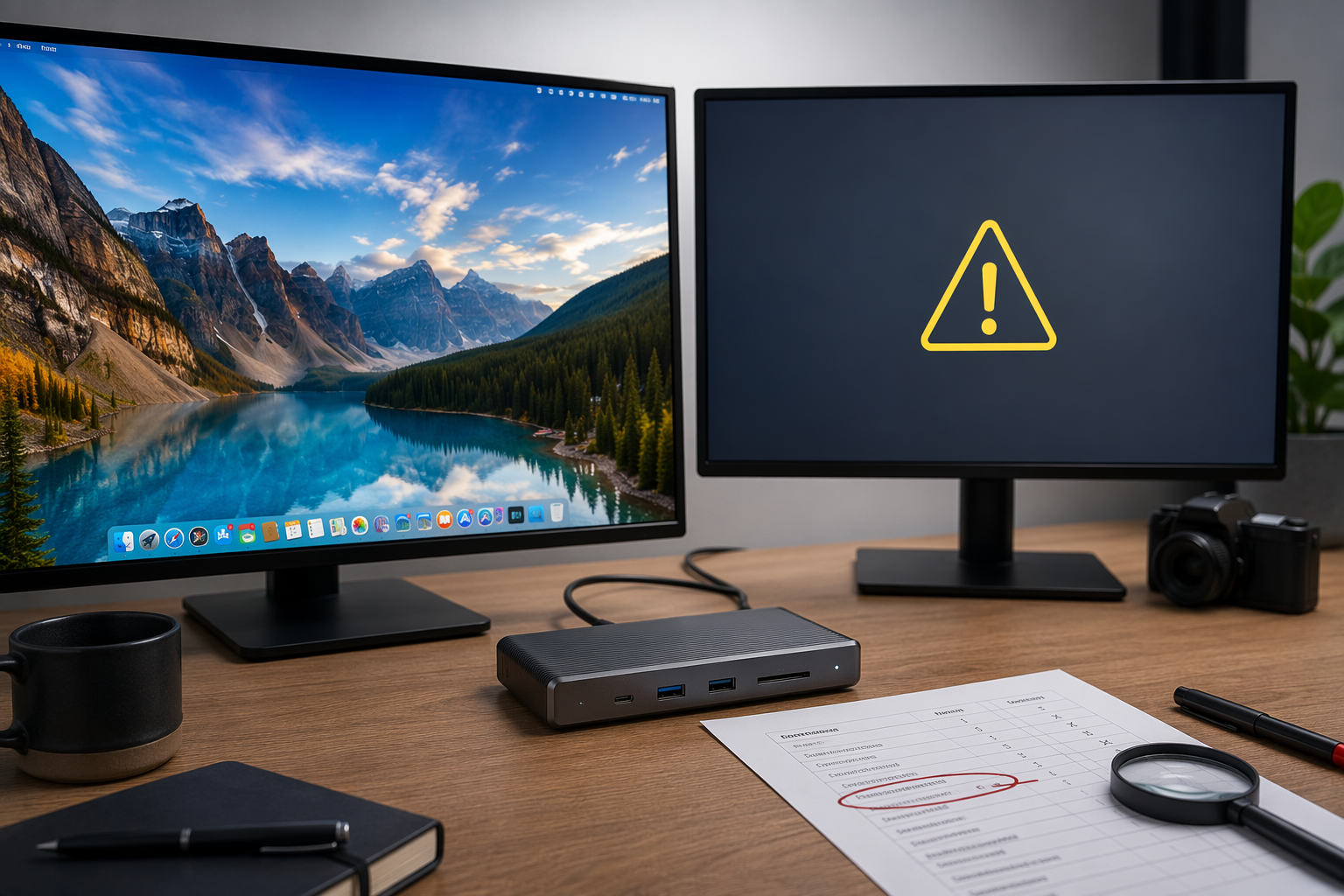
The Short Answer: These Are the Dual-Display Docks Worth Verifying First
As of Q3 2026, the safest way to shop is not to rank every USB-C rectangle on the desk. It is to separate confirmed dual-display behavior from vague dock language. These are the records that matter most.
| Dock | Best fit | Confirmed or claimed display mode | Main catch |
|---|---|---|---|
| Plugable UD-4VPD | Windows USB4 or Thunderbolt home-office setup where dual 4K120 over HDMI is the priority | PCWorld verified stable 4K120Hz output in hands-on testing; Plugable lists dual HDMI 2.1 support | PCWorld flagged significant thermal issues; Plugable says it is not recommended for Apple macOS devices |
| Razer USB4 Dock | Premium Windows USB4 setup needing more ports and 100W charging | Razer lists dual 4K120Hz support, 14 ports, and 100W charging | Higher price; still requires host-side USB4/TB compatibility checks |
| EZQuest USB4 8-in-1 Hub Pro | Mac users looking for driverless dual 4K60 without buying a full desktop dock | Macworld verified driverless dual 4K60 on Mac | Requires USB-C to HDMI or DisplayPort adapters; base M1/M2 MacBooks remain limited |
| Thunderbolt 4 docks such as Plugable TBT4-UD5 | Users who can use a Thunderbolt 4 dock as an interoperable alternative | Thunderbolt 4 mandates dual 4K support | Not strictly a USB4 dock; AMD Ryzen laptops may have USB4 without Intel Thunderbolt certification |
The Plugable UD-4VPD has the strongest single verification point in this group: PCWorld’s Mark Hachman confirmed stable 4K120Hz output using the Blur Busters UFO Motion Test.[2] Plugable’s own product page lists the UD-4VPD at $189.95 and describes its dual HDMI 2.1 display capability, while also stating that the dock is “not recommended for Apple macOS devices.”[3]
The Razer USB4 Dock is the cleaner premium candidate if you want more expansion around the same broad display target. Razer lists dual 4K120Hz support, 14 ports, 100W charging, and a price around $279.[4] The important difference in this source set is not that Razer magically escapes verification; it is that it does not carry the same cited PCWorld thermal warning attached to the Plugable UD-4VPD.
The EZQuest USB4 8-in-1 Hub Pro is the odd useful one. Macworld verified driverless dual 4K60 output on Mac, at a listed $149.99, but noted that the hub needs USB-C to HDMI or DisplayPort adapters for that setup.[5] It is not the highest-bandwidth-looking choice on a spec sheet, which is exactly why the confirmation matters.
Before You Pick a Dock, Check the Laptop
Most bad dock purchases happen before the dock is even unboxed. The buyer sees USB4 on the laptop, USB4 on the dock, and dual monitors on the marketing page, then discovers that one piece of the chain was narrower than the others.
Check whether the USB4 port is 40Gbps or 20Gbps
A 40Gbps USB4 port gives a dual-display dock the room buyers usually assume USB4 provides. Some laptops, including some Ryzen 6000 and Ryzen 7000 implementations, ship with 20Gbps USB4 ports, which may limit dual 4K60 capability. That does not mean every 20Gbps setup fails; it means the port speed becomes a purchase condition instead of a footnote.
- Look up the exact laptop model, not just the processor family.
- Find the manufacturer’s port table and confirm whether the USB4 port is 40Gbps or 20Gbps.
- Check whether the same port supports DisplayPort Alt Mode or USB4 display tunneling.
- Do not assume the two USB-C ports on the same laptop are identical.
Treat AMD USB4 and Intel Thunderbolt as related, not identical
USB4 helps AMD Ryzen laptops participate in the same desk setup that used to feel reserved for Intel Thunderbolt machines. That is good. It does not erase certification differences. Wirecutter notes that USB4 and Thunderbolt 4 docks are interoperable, while also pointing out that Intel does not certify Thunderbolt 4 on AMD hardware.[6]
This is where Thunderbolt 4 docks become useful alternatives rather than direct USB4 answers. A dock such as Wirecutter’s $200 Plugable TBT4-UD5 is a Thunderbolt 4 dock, not a USB4 dock in the strict naming sense, but it may still work from a USB4 laptop port if the host implementation supports the needed features.[6] For a Ryzen laptop, the product page and the laptop support page both matter.
Mac buyers have to check the chip, not only the port
Mac compatibility is the place where “the port looks right” fails hardest. Macworld’s EZQuest review confirms that base M1 and M2 MacBooks are limited to one external display through USB4, unless the setup uses DisplayLink software as a workaround. M1 Pro, M1 Max, and later higher-tier Apple silicon Macs support more external displays natively.[5]
That distinction matters more than the dock brand. A driverless dual-display USB4 hub can be the right answer for one MacBook and the wrong answer for another MacBook from the same desk drawer era. If the Mac is a base M1 or base M2 machine, assume one native external display unless the exact Mac model’s technical specifications say otherwise.
Know whether you are accepting DisplayLink
DisplayLink can be useful when the laptop cannot natively drive the displays you want. It is also a software workaround, not the same thing as native USB4 video tunneling. It adds a driver dependency and can introduce overhead or latency. For office documents, chat, and static reference windows, many people tolerate that trade-off. For a purchase meant to be clean, driverless, and predictable, it belongs in the fallback column.
Plugable UD-4VPD: The Strongest Verified Windows Case, With Real Caveats
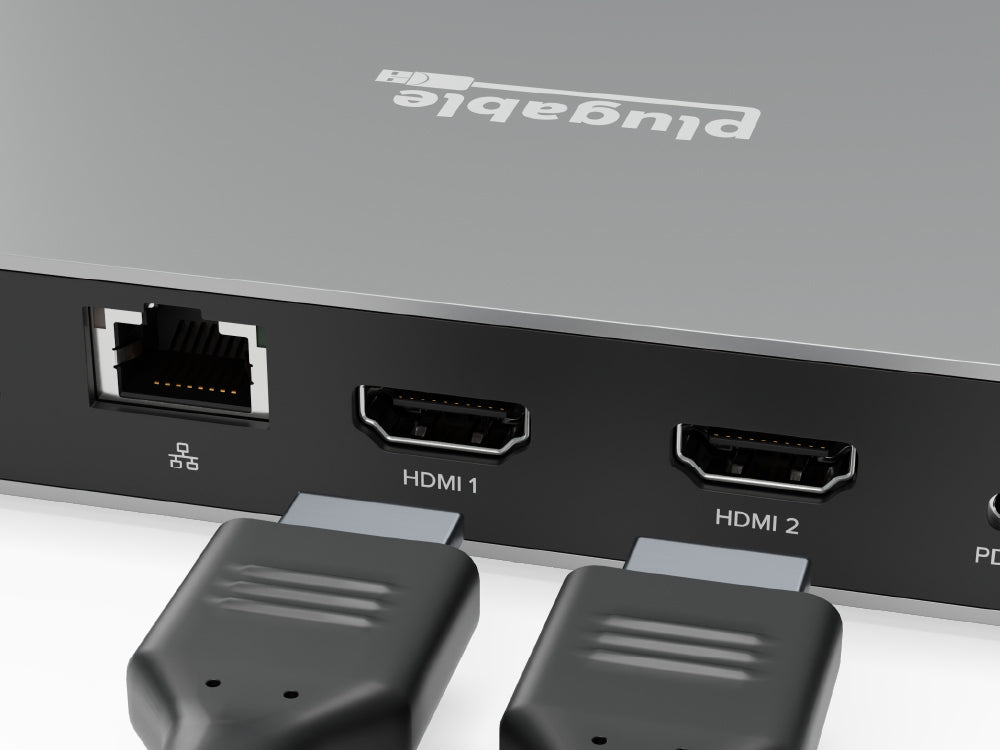
The Plugable UD-4VPD is the dock I would look at first for a Windows USB4 home office where the target is two high-refresh 4K monitors over HDMI. Not because HDMI 2.1 looks nice in a port list, but because PCWorld actually checked 4K120Hz behavior and reported stable output in testing.[2]
The official record lines up with that use case. Plugable lists the UD-4VPD as a USB4 dual-monitor docking station with two HDMI 2.1 outputs and a $189.95 price.[3] It is the kind of dock that answers a specific question cleanly: can this thing drive two demanding HDMI displays from a compatible Windows USB4 or Thunderbolt host?
The uncomfortable notes stay attached. PCWorld listed “significant thermal issues” as a con in its coverage of the UD-4VPD.[2] That is a reviewer-observed finding, not a manufacturer-confirmed defect, but it is exactly the sort of thing that matters when a dock is expected to sit behind a monitor arm for months. Plugable also says the UD-4VPD is not recommended for Apple macOS devices, so this is not the dock to buy for a Mac just because USB4 appears on both sides of the cable.[3]
Razer USB4 Dock: The Premium Windows Alternative
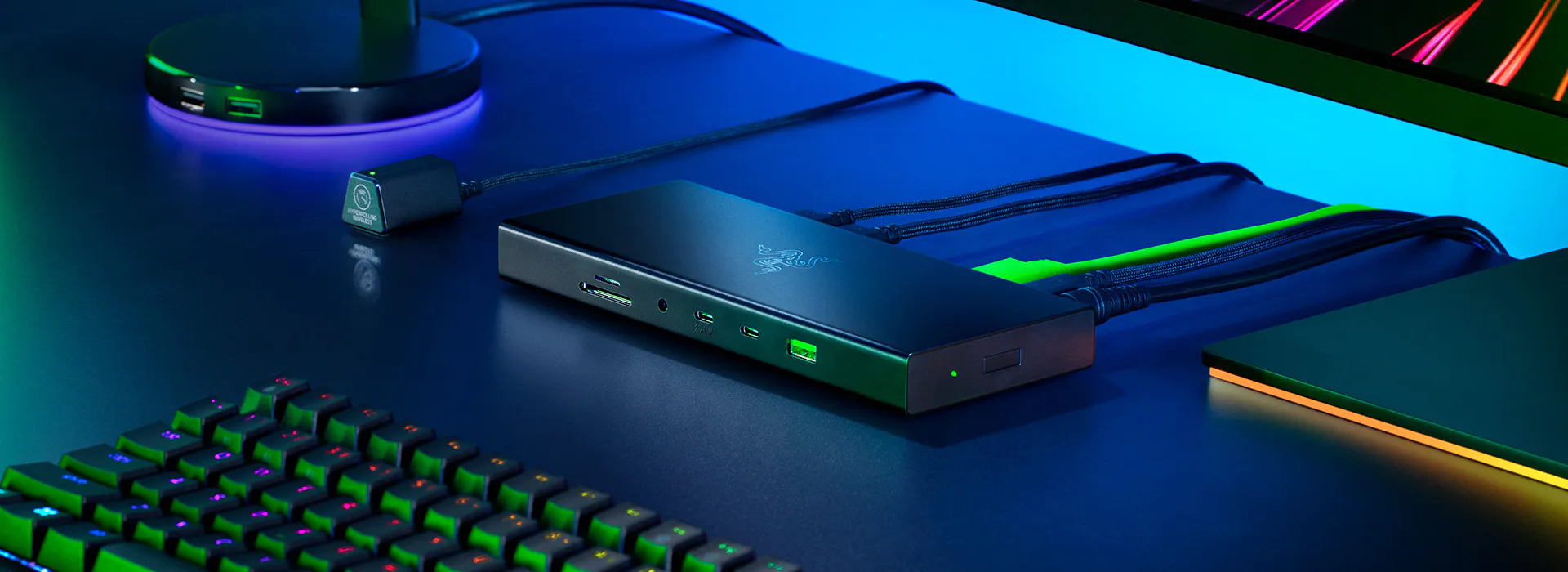
The Razer USB4 Dock aims at the same general home-office problem from a more expensive direction. Razer lists dual 4K120Hz display support, 14 total ports, 100W charging, and a price around $279.[4]
That makes it easier to justify when the dock is also replacing a charger, a small USB hub, and an Ethernet adapter. It does not remove the host-laptop checks. A Razer dock connected to a laptop with a limited USB4 implementation is still bounded by the laptop. The premium metal box does not negotiate its way around a missing display path.
Compared with the Plugable UD-4VPD, the Razer’s advantage in this source set is less about a stronger independent display test and more about the broader dock package: more ports, high charging output, and no equivalent cited thermal warning in the materials used here. If the purchase is purely about the best-confirmed dual 4K120 HDMI result, Plugable has the cleaner verification record. If the dock is the center of a larger desk build, Razer deserves the comparison.
EZQuest USB4 8-in-1 Hub Pro: The Mac-Relevant Exception
The EZQuest USB4 8-in-1 Hub Pro is not the obvious pick if you are shopping by maximum bandwidth language. That is why Macworld’s test is useful. The review verified driverless dual 4K60 on Mac and identified the hub as a rare non-40Gbps option that can do this, while also noting the need for USB-C to HDMI or DisplayPort adapters.[5]
For a Mac desk, that is a meaningful record. It means the hub is not asking the buyer to install DisplayLink just to light up a second screen, provided the Mac itself can support the display count. The adapter requirement is not elegant, but it is a tolerable compromise if the outcome is native extended displays.
The same review also keeps the boundary clear: base M1 and M2 MacBooks remain single-external-display machines through USB4 without DisplayLink.[5] The EZQuest hub does not turn an entry Apple silicon MacBook into an M1 Pro or M1 Max machine.
The Performance Trade-Off People Notice Later
Display output is not the only traffic moving through a dock. If your home office setup also runs an external SSD through the same box, dual monitors can cut into storage throughput. Wirecutter’s testing recorded write speeds dropping from 2834 MB/s with no monitor connected to 1073 MB/s with two monitors connected over HDMI on tested Thunderbolt 4 dock hardware.[6]
That does not make dual-display docks bad. It means “it drives both screens” and “it keeps peak external storage speed at the same time” are different claims. For a normal office setup, the display win may matter more. For video editing, large photo libraries, or frequent project transfers, the dock’s storage behavior belongs in the buying decision.
A Practical Pre-Purchase Rule
Buy only after you can confirm all four parts of the chain. First, the dock must explicitly support the exact dual-display mode you want, such as dual 4K60 or dual 4K120. Second, the laptop must have a USB4 or Thunderbolt implementation capable of carrying that mode, preferably a confirmed 40Gbps port for demanding dual 4K setups. Third, Mac buyers must verify the exact chip and model, because base M1 and M2 limits do not disappear at the dock. Fourth, the setup should not depend on DisplayLink unless you knowingly accept the driver and overhead trade-off.
For Q3 2026, that leaves a practical shortlist: Plugable UD-4VPD for the strongest verified Windows USB4 dual 4K120 case, Razer USB4 Dock for a more premium Windows-centered dock with more ports, EZQuest USB4 8-in-1 Hub Pro for a Mac-relevant driverless dual 4K60 exception, and Thunderbolt 4 docks such as Plugable TBT4-UD5 when interoperability matters more than the label on the product category. The label gets you into the search results. The verified dock, host laptop, operating system, and cable path decide whether both monitors extend on Monday morning.
References
- What Is USB4? What Is Thunderbolt 4? USB4 vs Thunderbolt 4 — BenQ
- Best Thunderbolt docks for a laptop PC — PCWorld
- Plugable USB4 Dual Monitor Docking Station with 100W Charging — Plugable
- Razer USB 4 Dock — Razer
- EZQuest USB4 Dual Display 8-in-1 Hub Pro review — Macworld
- The 3 Best Thunderbolt Docks for 2026 — Wirecutter
Report an issue with this profile
If a compatibility claim looks stale or incorrect, tell us — we re-verify before changing what's published.