
Build a Gemini Gem as Your Home Assistant Automation Coach
Learn how to create a custom Gemini Gem with your Home Assistant configuration context — exported entity lists, integration manifests, and add-on configs — so it can draft correct YAML automations and debug failed Traces without ever taking live control of your devices.
Last updated
The safest way to use a Gemini Gem with Home Assistant is to keep it out of the control path. Let it read your exported context, draft YAML, explain service calls, and diagnose failed Traces. Do not give it authority over locks, lights, climate, alarms, or routines.
That boundary is what makes the idea useful. A Gem can keep persistent instructions and reference files, so you do not have to re-explain your entity naming scheme, add-ons, dashboards, integrations, and helper conventions every time you ask for an automation. Gemini Gems require Gemini Advanced, which is listed at about $19.99 per month, and they are separate from any Google Home Premium plan.[1] Gems can also reference up to 10 attached Google Drive files as persistent context, including Docs, Sheets, and PDFs.[2]
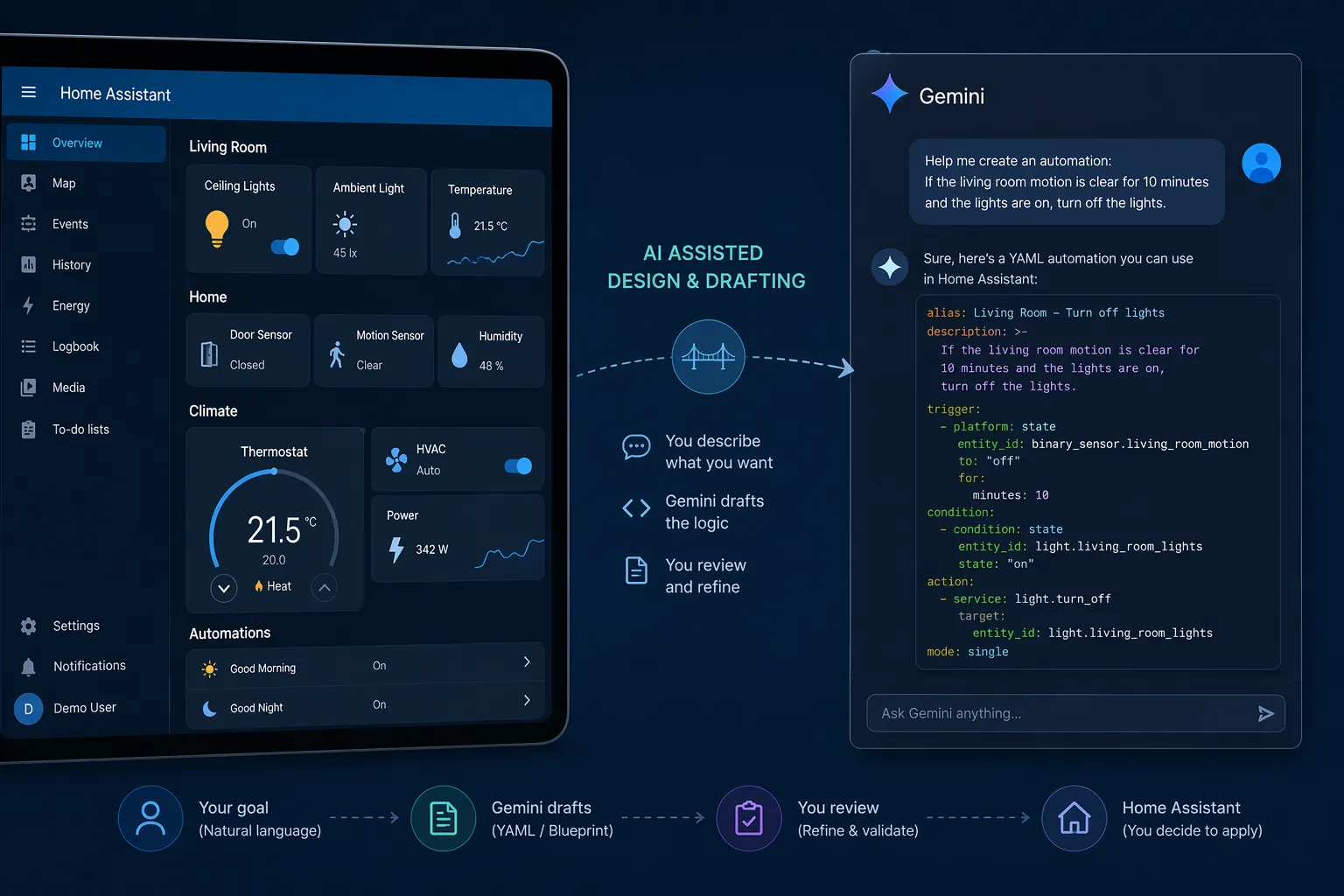
That does not turn Gemini into Gemini for Home, and it does not replace Home Assistant’s Google Generative AI Conversation integration. A custom Gem is better understood as a bench assistant: it can look at the paperwork, suggest a change, and help read the failure report. You still decide what gets pasted into configuration, what gets reloaded, and what runs in the house.
Start With A Context Pack, Not Generic Chat
The useful part of a custom Gemini Gem for a Home Assistant setup is not that Gemini can write generic automation examples. Any chatbot can produce plausible YAML. The useful part is that your Gem can repeatedly check its answer against your exported Home Assistant shape: real entity IDs, real integration names, real add-ons, and the way your system is already organized.
In October 2025, Home Assistant community user tismondo described building exactly that kind of Gem: exported add-on lists, integration manifests, and entity CSVs loaded into Google Sheets so the Gem could reference the actual installation rather than a generic smart home. In that case, the Gem was able to refer to real device names and suggest reasonable automations.[3]
The same forum thread also contains the warning label. User Aaronhrndz reported uploading entire Home Assistant configuration folders to a private repository linked to a Gem, yet the Gem still invented entities despite having access to real definitions.[3] That is the failure mode to design around. More context helps, but it does not remove the need to verify every entity ID before YAML touches your configuration.
What To Export From Home Assistant
Because Gems have a 10-file attachment limit, the context pack should be boring and selective. The goal is not to archive your whole Home Assistant instance. The goal is to give the Gem enough stable reference material to stop guessing about names, platforms, services, and helper relationships.
| File | Why It Matters | Practical Format |
|---|---|---|
| Entity inventory | Gives the Gem the canonical list of entity IDs, friendly names, states, and attributes it is allowed to cite. | Google Sheet exported from Developer Tools → States → Download CSV |
| Integration manifest or integration list | Helps the Gem understand which platforms exist in your install and which suggestions are likely relevant. | Google Doc or Sheet |
| Add-on list and key add-on configs | Shows whether automations depend on MQTT, Node-RED, Zigbee2MQTT, ESPHome, or other local services. | Google Doc or Sheet |
| Automation and script excerpts | Shows naming conventions, trigger patterns, helper usage, and existing service-call style. | Google Doc or PDF |
| Helpers and areas inventory | Helps distinguish physical devices from input helpers, groups, timers, counters, and room-level organization. | Google Sheet |
| Trace samples from failed automations | Gives the Gem concrete failure structure to interpret when debugging. | Google Doc or PDF |
The entity inventory is the anchor file. In Home Assistant, go to Developer Tools, open States, and use Download CSV. That export lists entities, current states, and attributes, and it is the method tismondo used to create a device inventory sheet for the Gem.[3]
After exporting, clean the sheet enough that a model can use it. Keep the entity_id column intact. Preserve friendly names and attributes. If the CSV includes stale devices, disabled leftovers, or entities from experiments you abandoned months ago, mark them clearly or move them to a separate tab. A Gem that sees both sensor.living_room_motion and binary_sensor.living_room_motion_old may not know which one is actually wired into your current automations.
Integration manifests and add-on lists do a different job. They do not prove an entity exists; the entity inventory does that. They help the Gem reason about what kind of YAML is plausible. If your install uses ESPHome sensors, Zigbee2MQTT devices, MQTT topics, or a specific alarm integration, the assistant can draft closer to your actual patterns. If that context is missing, it may reach for a service name or platform pattern that looks reasonable but does not belong in your setup.
Do not waste one of the 10 file slots on vague prose about your house if a table would do the job. A simple sheet with areas, key devices, helpers, and “do not automate” notes is usually more useful than a narrative description. The Gem needs a controlled vocabulary more than it needs your smart home origin story.
Write The Gem Instructions Like A Safety Boundary
Gem instructions are not just tone settings. For this use case, they are the operating contract. Gemini’s Gem builder includes a magic-wand rewrite tool for refining instructions, but the important part is still the content you give it: what the Gem may do, what it must refuse, and how it should treat the attached files.[2]
A good instruction block should make the role narrow. The Gem drafts YAML automations, scripts, template sensors, and helper suggestions. It explains Home Assistant Trace output. It compares proposed YAML against the attached entity inventory. It asks for missing context when the attached files do not prove something. It never claims it has executed, tested, enabled, disabled, or changed anything in Home Assistant.
The most important sentence is the least glamorous one: only use entity IDs found in the attached inventory unless explicitly labeling an entity as hypothetical. That will not eliminate hallucinations, as Aaronhrndz’s forum report shows, but it gives you a clear standard for rejecting bad output.[3]
You are my Home Assistant automation coach. You do not control my home and you do not claim to execute changes.

Use the attached entity inventory, integration list, add-on notes, helper list, and automation excerpts as your source of truth. When drafting YAML, use only entity IDs that appear in the attached inventory unless you clearly label an example as hypothetical.

Before giving final YAML, include a short verification section listing every entity_id, service, helper, and integration assumption used. If an entity or service cannot be verified from the attached files, ask me for confirmation instead of inventing it.

Your allowed tasks:
- Draft Home Assistant YAML automations, scripts, templates, and helper suggestions.
- Explain existing YAML.
- Diagnose Home Assistant Trace output pasted by me.
- Suggest safer trigger, condition, and action structure.

Your forbidden tasks:
- Do not claim to run, reload, enable, disable, or test automations.
- Do not give instructions that bypass Home Assistant safety checks.
- Do not treat locks, alarms, garage doors, heaters, or security devices as safe to automate without an explicit manual confirmation step.
- Do not use entities that are not present in the attached inventory unless clearly marked as hypothetical.
That instruction is intentionally fussy. It forces the assistant to show its work in the one place that matters: the boundary between a plausible answer and a pasteable one. If the verification section names binary_sensor.back_door_contact but your inventory only has binary_sensor.back_door, you catch the problem before Home Assistant does.
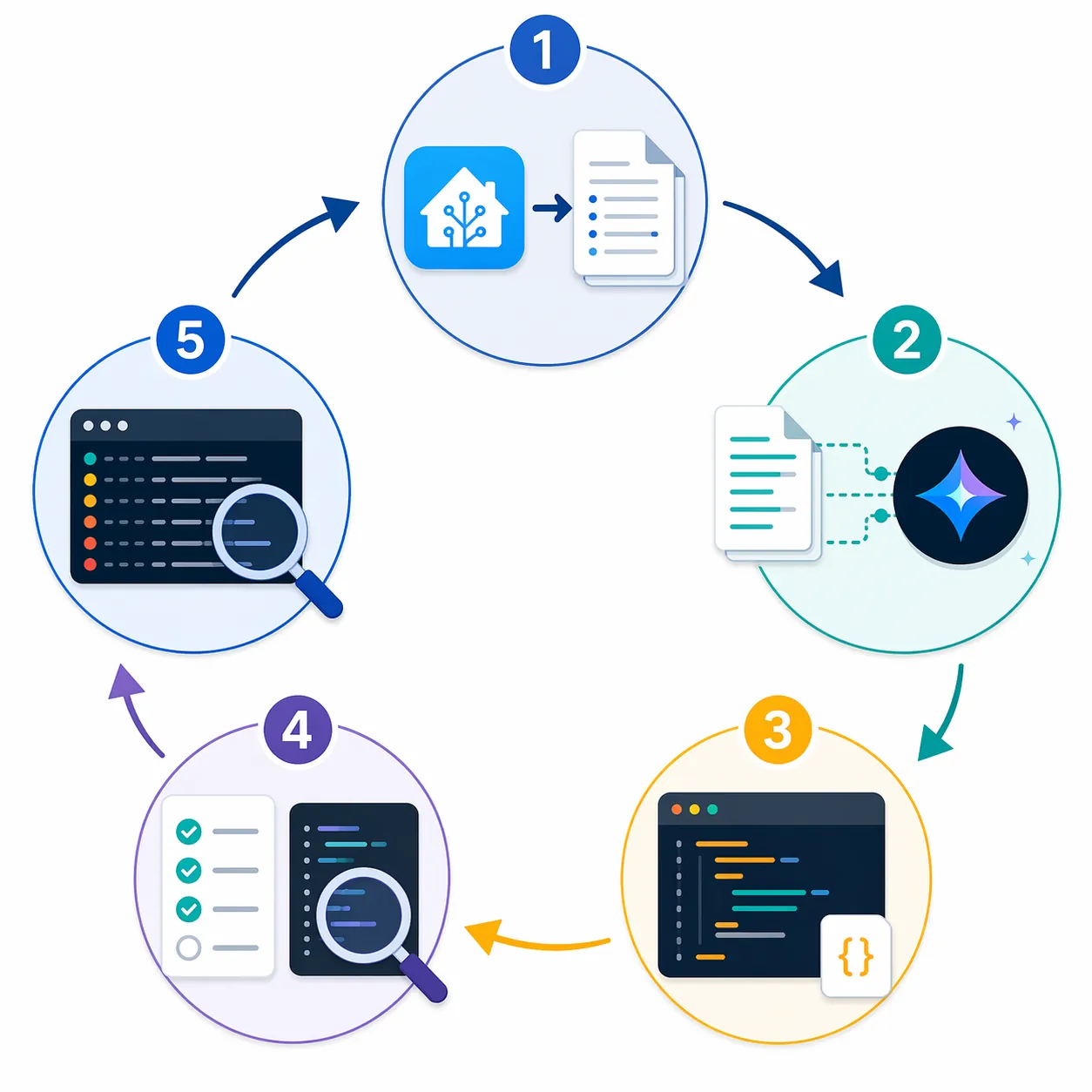
Use A Draft, Verify, Test, Diagnose Loop
The operating loop is simple enough to trust because it has human brakes at every step.
- Ask the Gem for an automation draft and require a verification section.
- Compare every entity ID against the attached inventory or your live Developer Tools States panel.
- Check service names, domains, trigger structure, and any device-class assumptions.
- Paste only after review, preferably into a test automation or disabled automation first.
- Run or manually trigger the automation in Home Assistant.
- If it fails, paste the Trace details back into the Gem and ask for diagnosis against the original YAML.
Shaun Cichacki’s April 2026 MakeUseOf walkthrough is useful here because it shows the shape of the loop rather than just the promise. Gemini generated working YAML for a geofence-style automation that turned on living room lights when a phone was within 2 meters of the router, and the same workflow used Home Assistant’s Trace log to debug a failed automation. The article also replicated those workflows with a custom-tuned Gem.[4]
That example should not be read as “Gemini always gets Home Assistant YAML right.” It is better evidence for a narrower claim: when the model has a concrete automation goal and receives Trace output after failure, it can help shorten the debugging loop. The Trace tells you which trigger fired, which condition failed, or which action did not execute. The Gem can explain that structure and suggest the next edit, but it still cannot know whether your phone tracker is reliable at the edge of Wi-Fi coverage or whether your light group behaves differently at night.
What To Paste Back After A Failure
When an automation fails, do not just say “it did not work.” Paste the automation YAML, the Trace path that failed, the changed variables if Home Assistant shows them, and the current state of the entities involved. If a condition evaluated false, include the condition block and the state Home Assistant saw at runtime. If an action failed, include the service call and the error message.
The Gem’s job at that point is not to produce a fresh automation from scratch. Ask it to identify the first failing step, explain why Home Assistant made that decision, and propose the smallest YAML change. That keeps the assistant anchored to the real Trace instead of letting it rewrite a mostly working automation into something prettier and less tested.
Where Hallucinations Still Sneak In
Entity IDs are the obvious failure point. A model may normalize a friendly name into the entity ID it expects, pluralize a group, swap a device_tracker for a sensor, or invent a helper that sounds like something a careful Home Assistant user would have created. The fact that a Gem has reference files does not prove it will use them perfectly; Aaronhrndz’s report is the clean warning on that point.[3]
Service names and newer integration behavior are the quieter problem. Gemini models have training cutoffs, and the available sources do not specify the exact cutoff date for the models used through Gems. If Home Assistant has changed a service name, deprecated a platform pattern, or adjusted integration behavior after the model learned it, the Gem may give old advice with confidence. Treat unfamiliar service calls as unverified until you check them in Developer Tools.
There is also a context-management problem. Ten files is enough for a disciplined context pack, not an entire smart home junk drawer. Large installations may need one condensed entity inventory, one helpers sheet, one integration and add-on summary, and a few representative YAML excerpts rather than every package, dashboard, and log file. If the files are too noisy, the Gem has more room to pick the wrong clue.
A Sensible File Layout
For most Home Assistant installs, I would start with six files and leave four slots open for temporary debugging material.
- entities_master_sheet: the Developer Tools States CSV cleaned into tabs for lights, sensors, binary sensors, switches, climate, media players, covers, locks, device trackers, and helpers.
- areas_and_devices: a human-readable map of rooms, important devices, aliases, and “never automate without confirmation” notes.
- integrations_and_addons: the active integrations, key add-ons, and any external systems that affect automations.
- helpers_and_groups: input_booleans, input_numbers, timers, counters, groups, scenes, and scripts that automations should reuse.
- automation_style_examples: a small set of known-good YAML from your own configuration.
- trace_examples: one or two failed Trace exports with the final fixed YAML, so the Gem sees how you debug.
The open slots matter. When you are working on a difficult automation, attach a temporary Trace document, a recent log excerpt, or a focused sheet of related entities. After the issue is solved, remove it. Persistent context should describe the house; temporary context should describe the current mess.
This is also where existing YAML recipes can help. A weather-alert automation, energy-monitoring smart plug routine, or occupancy-lighting pattern gives the Gem a style target. If you already maintain examples like “Automate Tropical Depression Warnings in Home Assistant” or “5 Home Assistant Automation Recipes for Energy-Monitoring Smart Plugs,” those patterns are worth including as style references or asking the Gem to adapt against your inventory.
The Rule Before You Paste
A Gem is useful when it behaves like a context-rich junior automation reviewer. It can remember your exported files across sessions, draft a first version, notice obvious YAML issues, and help interpret a Trace when Home Assistant refuses to do what you expected. That can be worth the subscription if it saves enough late-night debugging time.
It becomes unsafe or disappointing when treated as an authoritative controller. The practical rule is plain: attach the best available context, constrain the role tightly, expect occasional hallucinated entities, and never apply generated YAML without manual verification.
References
- Gemini Gems overview, Google Gemini, https://gemini.google/overview/gems/
- How to use Gemini Gems, Zapier, https://zapier.com/blog/gemini-gems/
- Has anyone created an AI Agent/Gem with full context and understanding of their personal HA setup?, Home Assistant Community, October 2025, https://community.home-assistant.io/t/has-anyone-created-an-ai-agent-gem-with-full-context-and-understanding-of-their-personal-ha-setup/944734
- Using Gemini for Home Assistant YAML Automations, MakeUseOf, April 2026, https://www.makeuseof.com/using-gemini-for-home-assistant-yaml-automations/
Known issues with this device / protocol
Spec-version history
For active regressions on this protocol, see Update Watch.
No linked Update Watch entries yet.