
Gemini AI Smart Home Privacy Settings: The Two-Layer Catch
This guide maps every privacy toggle controlling Gemini's smart home interactions, explains the two independent privacy layers, and reveals the critical catch: the Google Home extension requires Keep Activity ON to function, meaning you cannot control devices through the Gemini mobile app without saving your interactions.
Last updated
The first Gemini AI smart home control privacy setting most people need to know is not buried in a camera menu or a Nest speaker setting. It is in Gemini Apps Activity. If Keep Activity is off, Google says Gemini “can’t connect to Google Home” through the Google Home extension.[1] That means the privacy switch that sounds like a record-keeping preference is also the gate for controlling lights, thermostats, plugs, and other Home devices from the Gemini mobile app.
That catch matters because Gemini’s smart home privacy is split across two layers. One layer belongs to the Gemini app and its Google Home extension. The other belongs to Gemini for Home on speakers, displays, and the Google Home app experience. They have separate histories, separate auto-delete settings, and separate consequences when you turn things off.
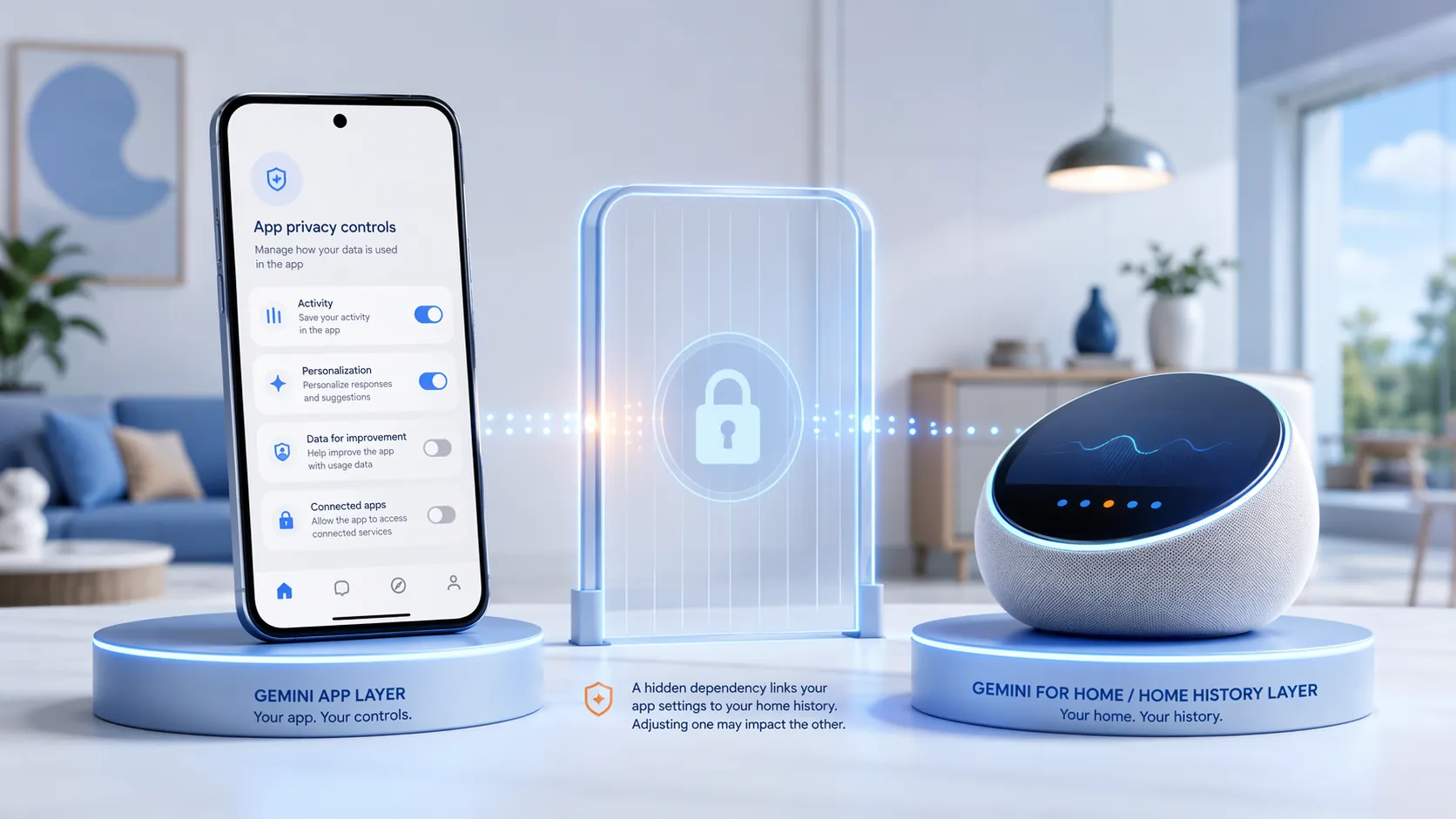
The Two Privacy Layers Are Not the Same Switch
A normal homeowner can be forgiven for looking for one master Gemini privacy page. There is not one. The Gemini app can talk to Google Home through an extension, while Gemini for Home runs natively across Google Home devices and Home app features. Naming confusion gets worse if you have also seen Google’s other Gemini branding; if that is the part tripping you up, our guide to whether Gemini Spark controls your smart home is the cleaner detour.
| Layer | Where it applies | Main history setting | What it controls | What breaks when tightened |
|---|---|---|---|---|
| Gemini app + Google Home extension | Gemini mobile app prompts that use the Google Home extension | Gemini Apps Activity / Keep Activity | Saved Gemini app conversations, training and review controls, auto-delete, and extension availability | Turning Keep Activity off blocks Gemini from connecting to Google Home through the extension |
| Gemini for Home | Speakers, displays, Google Home app features, and supported home automations | Home History | Gemini for Home interactions, home activity retention, voice/audio contribution options, and some camera AI features | Turning Home History off limits history-dependent Gemini for Home and camera AI features |
The practical rule is simple enough: do not change one layer expecting it to clean up the other. Deleting or disabling Gemini Apps Activity does not automatically manage Home History. Tightening Home History does not make the Gemini app extension private by itself.
Layer One: Gemini Apps Activity and the Google Home Extension
This is the layer involved when you open the Gemini app on your phone and ask it to control or check something in Google Home. Google’s help page for the Google Home extension says the extension requires Gemini Apps Activity, specifically Keep Activity, to be on; when that setting is off, Gemini cannot connect to Google Home.[1]
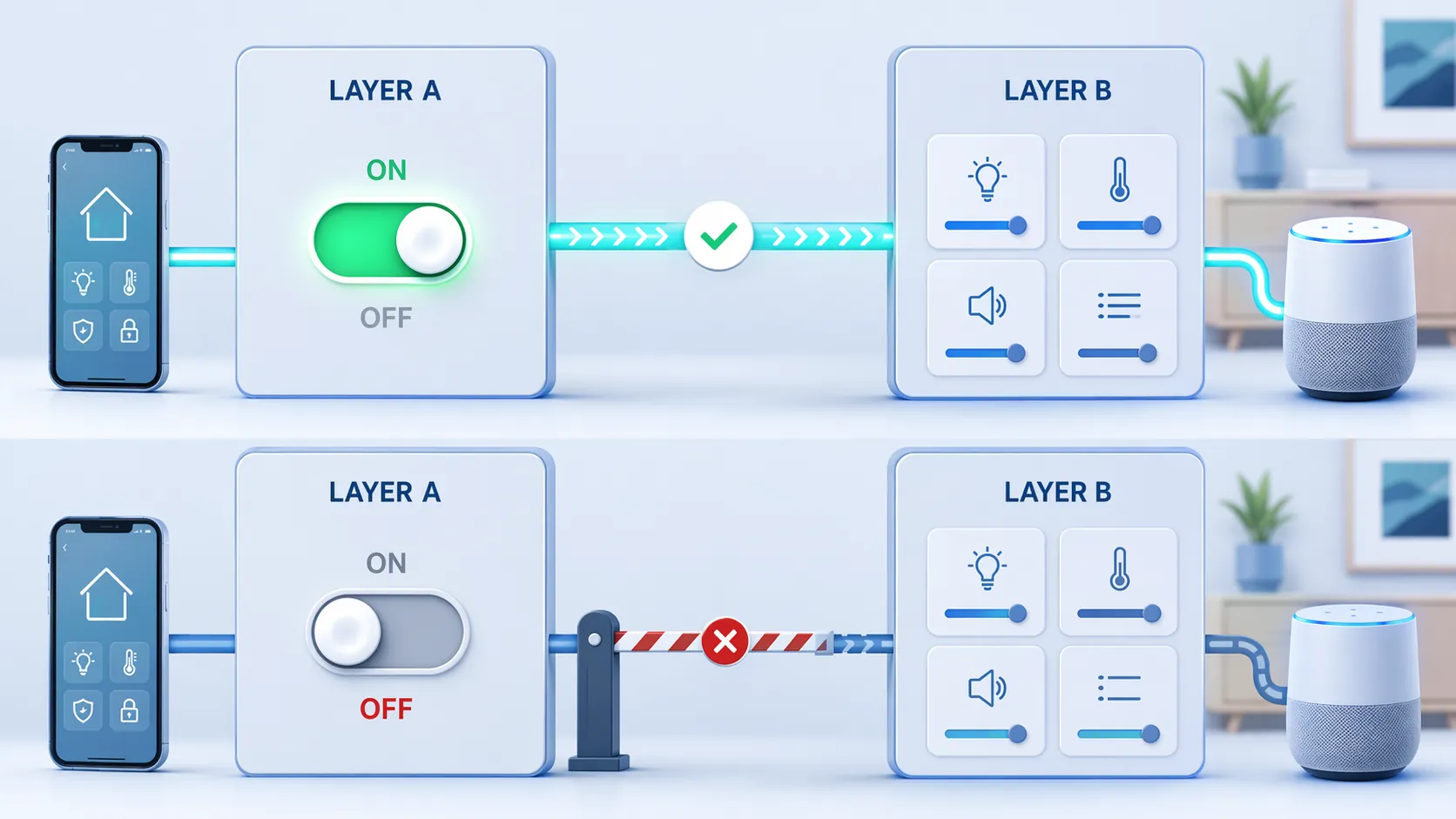
Keep Activity is the decisive mobile-app gate
Keep Activity sounds like a storage decision. For smart home use, it is also a compatibility decision. Leave it on, and Gemini can use the Google Home extension where the feature is available. Turn it off, and you are not merely reducing saved app history; you are cutting off that extension connection.[1]
That is the awkward tradeoff. A person can reasonably want Gemini to turn off the bedroom lamp from the phone without keeping a standing record of every smart home prompt in Gemini Apps Activity. Google’s current design does not separate those two choices for the mobile app extension.
| Gemini app setting | Where to think of it | If on | If off |
|---|---|---|---|
| Keep Activity | Gemini Apps Activity | Gemini app activity can be saved, and the Google Home extension can connect | Gemini cannot connect to Google Home through the extension |
| Auto-delete | Gemini Apps Activity | Saved activity can be set to auto-delete after 3, 18, or 36 months | Does not replace the Keep Activity dependency |
| Temporary chats | Gemini app conversation mode | Keeps the chat outside normal Gemini Apps Activity | Temporary chats are still retained for 72 hours |
Training, review, and auto-delete live in this same app layer
Gemini Apps Activity is also where Google describes how Gemini app conversations may be used, including for improving Google services, and how human review can apply to Gemini app activity.[2] That does not mean every smart home request is personally read by a human reviewer. It does mean this is the layer where app-side retention, review, and improvement controls belong.
For saved Gemini Apps Activity, Google offers auto-delete choices of 3, 18, or 36 months.[2] If you keep activity on because you need the Google Home extension, shortening auto-delete is the main damage-control setting inside this layer. It does not make the extension stateless; it reduces how long saved activity remains in the account history.
Temporary chats help, but they are not a smart home workaround
Temporary chat mode keeps a Gemini conversation out of normal Gemini Apps Activity, but Google still retains temporary chats for 72 hours.[2] That is useful for some one-off questions. It should not be treated as a complete substitute for understanding the Google Home extension dependency, because the smart home control issue still comes back to whether Gemini can connect to Google Home.
Layer Two: Home History and Gemini for Home
The second layer is Home History. This is the home-side history for Gemini for Home interactions and supported Google Home features. Google documents Home History separately from Gemini Apps Activity, with its own controls and auto-delete settings.[3]
This is the layer to check when the interaction starts on a Nest speaker, a Nest display, or a Gemini for Home feature inside the Google Home environment. If you are comparing devices before deciding how much Gemini you want in each room, the hardware differences in the 2026 Google Home and Nest lineup matter because not every home has the same mix of speakers, displays, cameras, and subscriptions.
| Home-side setting | What it controls | Default or options | Functional consequence |
|---|---|---|---|
| Home History | Gemini for Home activity and home event history | Auto-delete options include 3, 18, or 36 months | Some Gemini for Home and camera AI features depend on it being active |
| Voice, audio, and Gemini Live recordings contribution | Whether recordings can help improve Google services | Off by default | Requires Home History to be on before it can be enabled |
| Home History off | Stops normal Home History saving | Google may still retain voice data for up to 24 hours for service provision and security | History-dependent features may be reduced or unavailable |
Home History has its own auto-delete clock
Home History is not governed by the Gemini Apps Activity auto-delete setting. Google lists separate Home History auto-delete choices, including 3, 18, and 36 months.[3] If you want a tighter setup, you need to shorten both clocks: the Gemini app clock for extension-driven phone prompts, and the Home History clock for native Gemini for Home activity.
Turning Home History off does not mean nothing is retained
Google says that even when Home History is off, voice data may be retained for up to 24 hours for service provision and security.[3] That is not the same as long-term Home History, and it is not the same as opting into improvement recordings. It is the short retention Google says it needs to operate and protect the service.
The voice and audio contribution toggle is separate
The setting labeled “Improve Google services with voice, audio and Gemini Live recordings” belongs to the Gemini for Home side. Google says this control is off by default and requires Home History to be on before it can be enabled.[3] That distinction is worth keeping: Home History can be on without separately contributing voice, audio, and Gemini Live recordings for improvement.
Camera AI Adds a Subscription and History Dependency
Cameras are where the privacy setting stops feeling abstract. AI descriptions, AI notifications, and Home Brief are tied to Google Home Premium Advanced and active Home History.[4] In practice, that means a camera owner trying to minimize history may lose the very summaries and descriptions that made the subscription useful.
The correct posture with camera AI is neither panic nor blind trust. Treat AI descriptions as machine-generated summaries that may help triage events, not as a verified record of what happened. If a camera says a package arrived, a person walked through the yard, or an event matters enough for Home Brief, the consequence is still yours: you decide whether to ignore it, check footage, call someone, or change an automation.
Google’s Gemini for Home privacy disclosure also draws an important boundary around review: human reviewers may read Gemini interactions, but Google states video footage and audio recordings are not shared with reviewers without separate consent.[3] That is narrower than the most alarming version of the concern, but it still leaves a practical question for each household: which interactions are you comfortable storing at all?
What Breaks When You Tighten Each Control
The easiest way to manage Gemini AI smart home control privacy settings is to stop asking whether a toggle is “good” or “bad” and ask what it disconnects. The table below is the compatibility map I would want before changing settings in a house that actually depends on them.
| Action | Training or review effect | Retention that may still apply | Smart home consequence |
|---|---|---|---|
| Turn off Keep Activity in Gemini Apps Activity | Reduces normal Gemini app activity saving and related use described in Gemini Apps Activity controls | Temporary chats can still be retained for 72 hours if used | Gemini cannot connect to Google Home through the mobile app extension |
| Keep Gemini Apps Activity on but shorten auto-delete | Does not remove the possibility of saved app activity during the retention window | Saved activity remains until the selected 3-, 18-, or 36-month deletion window | Keeps Google Home extension control available where supported |
| Turn off Home History | Stops normal Home History saving and prevents enabling the voice/audio improvement contribution setting | Voice data may still be retained for up to 24 hours for service provision and security | Can limit Gemini for Home and camera AI features that depend on active Home History |
| Leave Home History on but keep voice/audio contribution off | Avoids separately contributing voice, audio, and Gemini Live recordings for improvement | Home History still follows its selected retention window | Preserves Home History-dependent features while limiting one improvement data path |
| Disable or avoid camera AI features | Reduces reliance on AI-generated event interpretation | Does not by itself configure Gemini Apps Activity | May remove AI descriptions, AI notifications, or Home Brief usefulness |
The security side is related but separate. Privacy settings decide what is saved, reviewed, or used for improvement. Security design decides whether an attacker can trick an assistant into doing something unwanted. If you are thinking about both at once, the calendar-invite exploit covered in AI Hackers Turned a Calendar Invite Into a Smart Home Exploit is a useful companion case.
A Practical Privacy Posture for Mid-2026
Gemini for Home is still uneven in mid-2026: availability can vary by device, region, early-access status, app version, and subscription. Menu paths may move, and Google could change the Keep Activity dependency later. Today, though, the important dependency is documented plainly enough to plan around: Gemini’s Google Home extension needs Keep Activity on.[1]
For someone who wants the most private setup, the answer is clear but costly: turn off Keep Activity, turn off or tightly limit Home History, avoid camera AI features that require active history, and accept that Gemini mobile app smart home control through the Google Home extension will not work.
For someone who wants Gemini control without leaving every door open, the more realistic setup is narrower: keep Gemini Apps Activity on only because the mobile app extension requires it, set the shortest acceptable auto-delete window, review and delete sensitive activity manually when needed, keep Home History on only if you use Gemini for Home or camera AI features that depend on it, choose the shortest Home History auto-delete window that fits your household, and leave the voice/audio improvement contribution toggle off unless you actively want to contribute recordings.
That is not a perfect privacy bargain. It is the actual bargain as documented now: you can reduce training paths and shorten retention in both layers, but if you want Gemini mobile app control of Google Home devices today, Keep Activity has to stay on.
References
- Use Gemini with Google Home, Google Help.
- Gemini Apps Privacy Hub, Google Help.
- Gemini for Home and your privacy, Google Home Help.
- Learn about Home Brief, Google Home Help.
Known issues with this device / protocol
Spec-version history
For active regressions on this protocol, see Update Watch.
No linked Update Watch entries yet.