
Best Kid-Safe Smartphones for Smart Home Control
Not all kid-safe phones can run smart home apps like Google Home or Alexa. This guide compares Gabb, Pinwheel, Bark, and standard parental controls to find which phones balance safety and smart home control compatibility.
Last updated
The practical answer is less comforting than the product pages make it sound: the best kid-safe smartphone for controlling smart home devices is usually not the most locked-down kid phone. If your child needs to open Google Home, Alexa, SmartThings, Philips Hue, or a smart lock app, the phone must do more than place calls and block TikTok. It has to install the app, sign into the right account, survive an in-app browser or webview during setup, stay on Wi-Fi, and keep enough permissions available for the app to work.
That separates two questions parents often collapse into one. Can the child install and open the smart home app? And can the child use it without gaining too much phone freedom? Gabb answers the second question strongly but fails the first for smart home app control. Bark, Pinwheel, iPhone with Screen Time, and Android with Family Link all move closer to compatibility, but each gives up a different amount of lockdown.
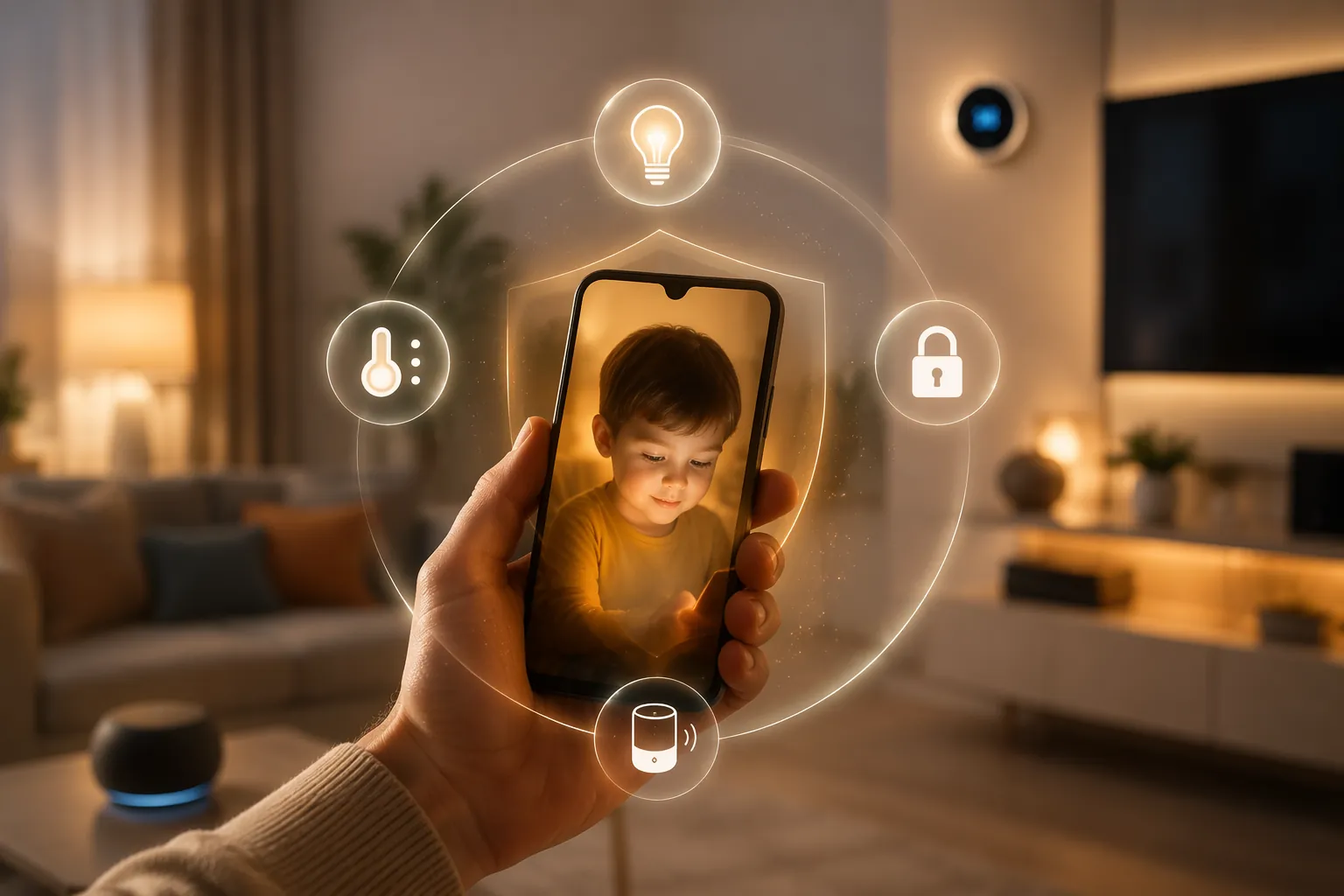
The Compatibility Shortlist
| Phone option | Can run major smart home apps? | Why it matters |
|---|---|---|
| Gabb Phone 4 / 4 Pro | No | Gabb's curated app guide does not list Google Home, Alexa, SmartThings, Philips Hue, or a smart home app category; GabbOS also avoids browsers and webviews that many smart home apps use for login and setup. |
| Pinwheel phone | Possibly, with setup friction | Parents can enable Google Play and approve apps, but restricted browser access may interfere with account linking or device setup inside smart home apps. |
| Bark Phone | Yes, strongest dedicated kid-safe option | The Advanced Plan allows Google Play access with parent approval and monitoring, so the major smart home apps can be installed while Bark still watches for concerning content. |
| Troomi phone | Unverified | Troomi markets parent-controlled safe smartphone access, but the available materials do not establish whether Google Home, Alexa, SmartThings, or Hue work end to end. |
| iPhone with Screen Time | Yes | Standard iOS compatibility means the smart home apps work normally, while Screen Time and Family Sharing handle approvals and restrictions. |
| Android with Family Link | Yes | Standard Android compatibility means the smart home apps work normally, while Family Link handles supervised accounts and app approvals. |
For a household where the child only needs to turn on a smart plug or check a light, that table may feel annoyingly strict. It is strict for a reason. Smart home apps are not like calculators. They often rely on account permissions, cloud services, home membership roles, local network access, location permissions, Bluetooth setup, QR code scanning, and web login screens. A kid phone that blocks the wrong one of those steps may still look fine in a store comparison and fail at the kitchen counter.
Gabb Is the Cleanest Lockdown and the Clearest No
Gabb is the easiest option to judge because its app model is unusually explicit. Gabb publishes an app guide for its curated store, and Google Home, Amazon Alexa, SmartThings, Philips Hue, and a broader smart home app category do not appear there.[1] That is not a soft “maybe.” If the app is not available through the phone’s approved app system, the child cannot use that phone as a normal smart home controller.
This is also where “safe phone” marketing can become practically misleading if the family’s actual use case is household control. A Gabb Phone may be a sensible choice for calls, texts, basic tools, and a much smaller app universe. It is not a good choice if the purchase depends on the child opening the Google Home app to control Nest devices, using Alexa routines, adjusting Hue scenes, or unlocking a smart lock from a phone.
The webview issue matters too. Many smart home apps hand off login, authorization, or device linking to an embedded browser screen. A phone designed to remove browser access may protect the child from the open web, but it can also remove the plumbing that smart home setup flows expect. For a parent setting up a child’s device, that is often the failure point: not the app icon, but the account-linking screen that never loads.
Bark Is the Strongest Dedicated Kid-Safe Phone for Smart Home Apps
Among dedicated kid-safe smartphones, Bark is the most capable smart home choice because it keeps Google Play access in the picture. On Bark’s Advanced Plan, parents can approve app installs from Google Play, while Bark’s monitoring scans supported activity for concerning content. As of July 2026, that Advanced Plan is listed in the $39–$79 per month range, depending on plan terms and device arrangement.[2]
That difference is functional, not cosmetic. If a parent approves Google Home, Alexa, SmartThings, or Philips Hue, the child is using the same app ecosystem those services are built around. The phone is still managed, but it is not pretending that a modern smart home can be controlled from a tiny curated list that excludes the control apps.
The trade-off is cost and exposure. Bark’s model gives the child a more capable phone, and the parent then relies on approval rules and monitoring to reduce risk. That is a very different safety posture from Gabb’s “the app simply is not there” approach. For families that need phone-based smart home control, though, Bark is the dedicated kid-safe option that most directly matches the job.
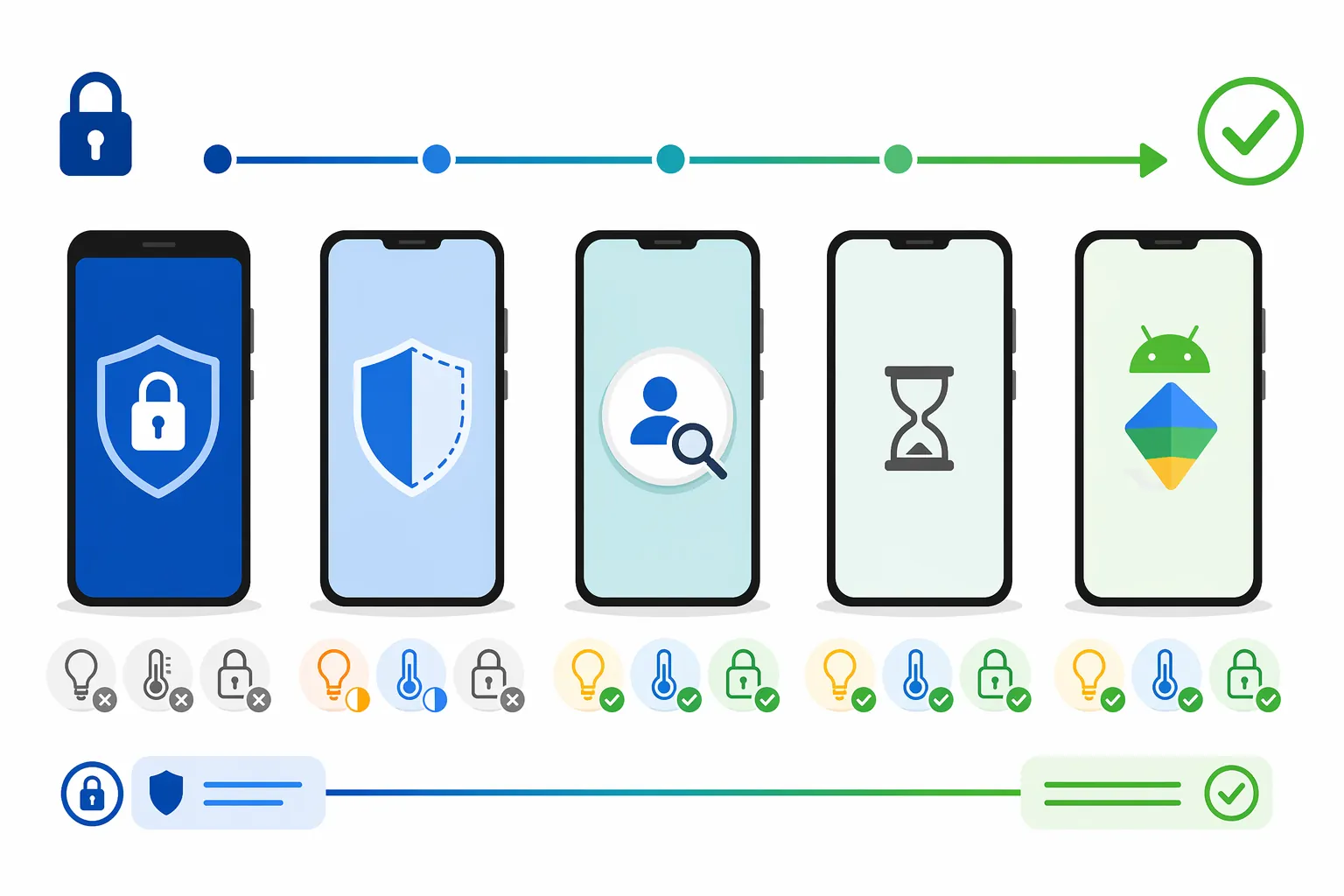
Pinwheel Can Be Workable, but the Setup Path Matters
Pinwheel sits in the gray zone. Its current model allows parents to enable the Google Play Store and approve apps individually, which creates a real path to installing smart home apps.[3] That makes it meaningfully more promising than Gabb for this specific use case.
The caution is that installation is only the first gate. Pinwheel’s browser restrictions can matter if Google Home, Alexa, SmartThings, Hue, or a manufacturer app needs a web-based sign-in, OAuth authorization, or account-linking screen. Android Central’s 2024 Pinwheel review is also a useful date marker because Pinwheel’s Google Play process changed in 2024; older impressions may not describe the current setup flow.[4]
For Pinwheel, the buying test should be specific. Do not ask only whether Google Play can be enabled. Ask whether the exact app can be installed, opened, signed into, added to the home, granted local network or Bluetooth permissions where needed, and used by the child account after the parent leaves the room. A light app that only toggles an already configured device may behave differently from a smart lock app that requires identity checks or a manufacturer login.
Standard iPhone and Android Are the Compatibility-First Route
If compatibility comes first, a standard iPhone with Apple Screen Time or a standard Android phone with Google Family Link is the cleanest technical answer. The child is using the same app store, operating system, and app permissions that the smart home platform expects. Apple’s parental controls support child accounts, Family Sharing, app limits, content restrictions, and purchase approval flows.[5] Google Family Link supports supervised Google accounts, app approvals, screen time controls, and location-related management for Android devices.[6]
That means Google Home can handle Nest and Matter-related control in the normal way, Alexa can connect to Echo and compatible devices, SmartThings can manage its device graph, and Hue can use the Hue account and bridge flow. If you are still choosing the smart home side of the setup, start with the home automation hub question first; the child’s phone should follow the ecosystem you actually plan to run.
The safety trade-off is real. Wirecutter recommends Apple Screen Time as a strong free iOS option and Google Family Link as a strong free Android option, but these are still parental-control layers on general-purpose phones, not purpose-built locked operating systems.[7] A determined child may find workarounds, especially as they get older or more technically curious. The parent gets full app compatibility and pays less if the hardware is already in the house, but gives up the simplicity of a phone that was never allowed to become a full smartphone in the first place.
Where iPhone Makes Sense
An iPhone with Screen Time is strongest for families already using Apple hardware or iCloud Family Sharing. It also makes sense when the parent wants to approve app installs, limit content, and still let the child use polished versions of Google Home, Alexa, Hue, SmartThings, or a smart lock app. For households using Google Nest devices, it is worth checking whether the specific feature depends on the Google Home app, the Apple Home app, or both; Nest and Matter roles can be confusing if the phone is being treated as the child’s main controller. Our Google Nest and Matter controller guide is the better place to sort that out before assigning a child device.
Where Android Makes Sense
Android with Family Link is strongest when the household is already Google-centered or when smart home control depends heavily on Google Play apps. It also avoids the extra uncertainty that comes with modified kid-phone operating systems. The downside is the same as iPhone: the child is holding a real smartphone, and the safety outcome depends on account settings, parent review, app choices, and ongoing supervision.
Troomi Needs Direct Testing Before It Belongs on the Shortlist
Troomi is harder to place because the available materials establish the company’s interest in safe smartphone controls and kid-safe smart-tech concerns, but they do not verify the specific compatibility question this article depends on: whether Google Home, Alexa, SmartThings, Philips Hue, and common smart lock apps can be installed, signed into, and used without blocked setup steps.[8][9]
That does not mean Troomi cannot work. It means the evidence is not strong enough to treat it as a proven smart home controller. A parent considering Troomi should ask the company or retailer about the exact apps, not just “smart home support” in general. The difference between an approved weather app and a working Google Home setup flow is the difference between a phone that sounds safe and a phone that does the household job.
Cost Changes the Recommendation
The compatibility-first answer would be easier if every option cost the same. They do not. Apple Screen Time and Google Family Link are built-in controls, so the parental-control software cost is free if the family already owns suitable hardware.[5][6] Bark’s Advanced Plan is a paid monthly phone plan, listed at $39–$79 per month as of July 2026.[2] Pinwheel lists a $17.99 per month caregiver portal fee, before the carrier plan.[3] Gabb hardware is commonly sold in the roughly $150–$200 range plus a carrier plan, but for this use case the lower device price does not help if the required smart home apps are unavailable.[1]
That makes the decision less like choosing the “safest” phone and more like choosing the least bad compromise. If a child needs to control a smart lock, the parent may reasonably pay more for Bark or accept the looser controls of a standard phone. If the child only needs to turn on bedroom lamps, a voice assistant or wall control may solve the problem without putting a smartphone app in the child’s pocket.
The Gabb Workaround: Voice Control Instead of Phone Control
For families that prefer Gabb-level lockdown, the better workaround may be not using the child’s phone as a smart home controller at all. A supervised Amazon Echo, Echo Dot Kids, Google Nest Mini, or similar voice assistant can let a child trigger basic routines, lights, plugs, and speakers without giving them a general app device. Gabb itself discusses voice assistants as a separate kid-safety question, which is the right framing: voice control has its own risks and settings, but it does not require pretending a Gabb Phone can run smart home apps.[10]
This works best for simple, bounded commands: turn on a lamp, start a bedtime routine, play approved audio, or control a plug in a shared space. It is less appropriate for sensitive controls such as unlocking doors, changing security modes, or managing access codes. Anything involving locks deserves a separate permission review, especially if the child’s role changes from “can turn on lights” to “can open the house.”
What to Test Before You Commit
This guide is based on published restrictions, app availability, pricing, and current documentation, not NestGrid hands-on testing with each phone. Before buying a phone or signing a plan, test the exact app path if the retailer, carrier, or manufacturer gives you any way to do it.
- Install the exact app: Google Home, Alexa, SmartThings, Philips Hue, the lock manufacturer’s app, or the plug maker’s app.
- Sign in with the child’s account or a supervised household role, not only the parent’s admin account.
- Check whether any webview, browser login, QR code scan, Bluetooth prompt, local network prompt, or location permission is blocked.
- Confirm what the child can control after setup, especially locks, garage doors, cameras, alarms, and routines.
- Restart the phone and try again on home Wi-Fi to catch permissions that only fail after the first setup session.
The most reliable recommendation is therefore risk-based. Choose Bark if you want a dedicated kid-safe smartphone with the strongest published path to real smart home app compatibility. Choose iPhone with Screen Time or Android with Family Link if compatibility matters more than having a purpose-built locked-down phone. Choose Gabb if lockdown matters more than phone-based smart home control. Treat Pinwheel as potentially workable but worth testing through the full login and setup flow. Treat Troomi as unverified until the exact apps are confirmed.
References
- Gabb App Guide — Gabb
- Bark Phone Plans & Pricing — Bark
- Pinwheel How It Works — Pinwheel
- Pinwheel kids smartphone review — Android Central
- Use parental controls on your child's iPhone and iPad — Apple Support
- Google Family Link — Google
- The Best Parental Control Apps to Manage Screen Time (and Keep Your Kid Safer Online) — NYT Wirecutter
- Parental Controls for Kids: Safe Smart Tech from Troomi — Troomi
- What's the Best Smart Speaker for Kids' Safety? — Troomi
- Are Voice Assistants Safe for Kids? — Gabb
Known issues with this device / protocol
Spec-version history
For active regressions on this protocol, see Update Watch.
No linked Update Watch entries yet.